1. What you need
One file of people you know, with names on it. That is the whole requirement. Company and job title make the matching sharper, and an email address means we can draft an invite you can actually send, but none of that is required to start.
LinkedIn is the best source for most hosts because it is your professional network rather than your address book, and because it carries the date you connected, which is how we find the people you have forgotten. Google Contacts is the faster source if you would rather skip the wait. You can upload both.
The bigger the file, the better the season.
There is no size that is too big. A network in the tens of thousands is not a problem to be trimmed, it is the most useful thing you own. Do not pre-filter it, do not delete rows, and do not apologize for it.
2. LinkedIn, step by step
Do this on a desktop browser. The LinkedIn mobile app does not carry the download screen.
- 1
Open the download page directly
This link takes you straight there. No need to go hunting through Me, then Settings & Privacy, then Data privacy. Sign in if LinkedIn asks, and you land right on the download screen.
- 2
Choose the first option and request your archive
LinkedIn changed this screen since the last time most people looked. There is no separate Connections checkbox anymore. The first choice, Download larger data archive, including connections, verifications, contacts, account history..., is now the only way to get your connections out. Leave it selected and click Request archive.
LinkedIn tells you right on the screen: your download will be ready in about 24 hours. Keep reading, the next section is honest about what that actually means.
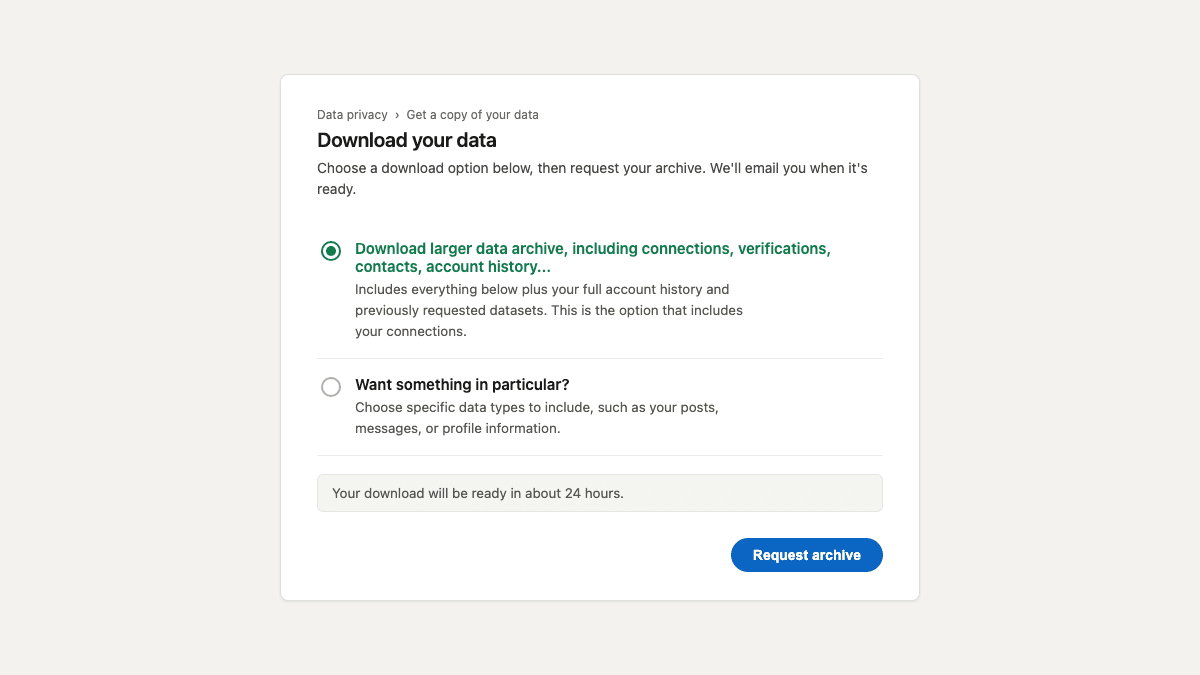
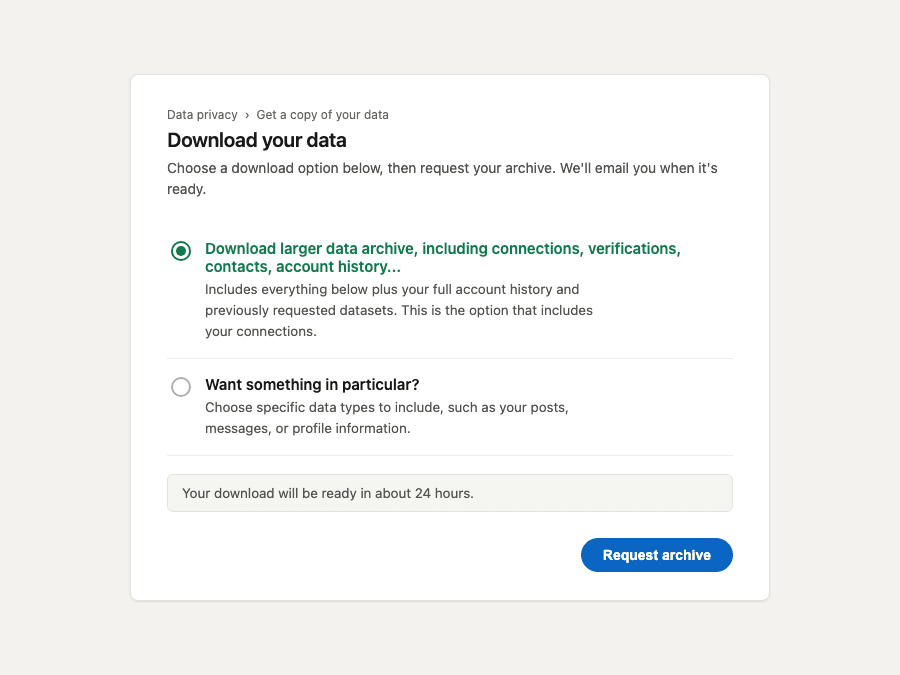
A clean recreation of the request screen, not a real account. Yours will look the same. - 3
Confirm the request went through
The page swaps to a pending state: a note that your request was made, and the line We will send you an email when your download is ready. The Request archive button becomes Request pending. That is the whole confirmation. There is nothing else to click here.
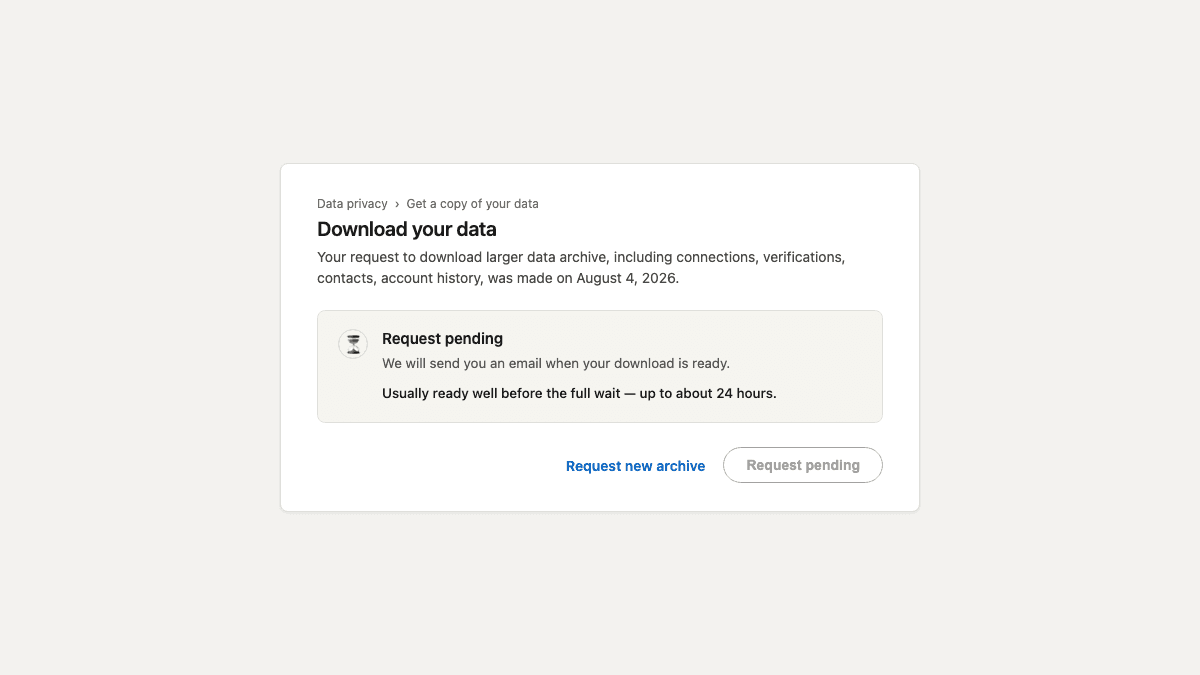
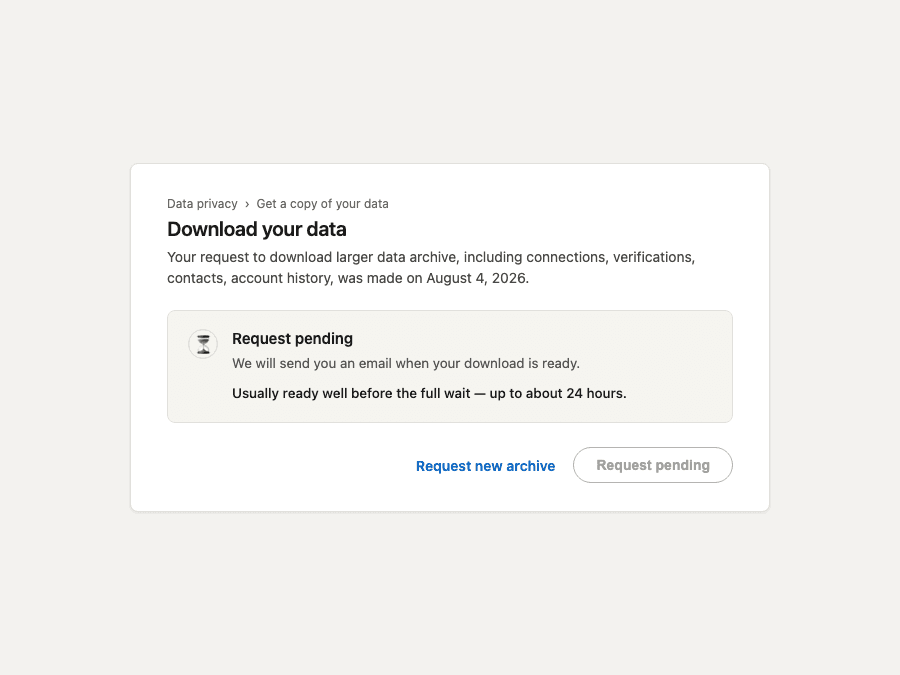
A clean recreation of the pending state, not a real account. Requested your file? Save your place.
Make a free account now. LinkedIn emails your file, usually within 24 hours, and your account will be waiting.
- 4
Open the email and download the ZIP
The email comes from LinkedIn once your archive is ready. You may be asked to sign in again. What downloads is a ZIP file. Leave it exactly as it is, do not unzip it.
3. The wait, explained honestly
LinkedIn does not hand you the file. It emails it. LinkedIn’s own words on the request screen are "about 24 hours," and we would rather tell you that than the old folk wisdom about a ten-minute wait. In practice it is often much sooner, sometimes just a few minutes, and sometimes it really does take the whole 24 hours when their queue is busy.
There is nothing to click while you wait and nothing to refresh. Nothing went wrong if it takes the full day. Close the tab, go do something else, and come back when the email lands.
If it has been more than a day
Check spam first, then go back to the download link above. Any archive that is ready is downloadable straight from that screen, whether the email reached you or not.
4. Which file to use from the ZIP
Drop the whole ZIP on us. Do not unzip it, do not go looking for the right file inside it. We read LinkedIn ZIPs directly and pull out Connections.csv ourselves.
You never have to touch the file inside
If you are curious anyway, the file we are looking for is named Connections.csv, with First Name, Last Name, Company, Position, and Connected On as columns. But you do not need to find it, open it, or rename it. The whole ZIP works.
The top of the file looks broken. It is supposed to.
If you ever do open Connections.csv yourself, the first few lines are a note from LinkedIn rather than your contacts, and the real column headers start a few lines down. Nothing is wrong with your download. We skip that note automatically, so upload the file exactly as it came.
5. Google Contacts, if you would rather not wait
Google downloads immediately. No email, no queue. It is usually a smaller list, because it is your address book rather than your professional network, and it does not carry the date you connected with someone. If you have both, use LinkedIn. If you want to start in the next thirty seconds, start here.
- 1
Go to contacts.google.com
Click the export icon above your contacts list. It opens the Export contacts dialog.
- 2
Keep Google CSV selected and click Export
The dialog shows how many contacts you are about to export, with Google CSV already selected under Export as, alongside CSV for Outlook only and vCard for Android or iOS. Leave Google CSV selected, it is the format we read best. Clicking Export downloads contacts.csv straight away.
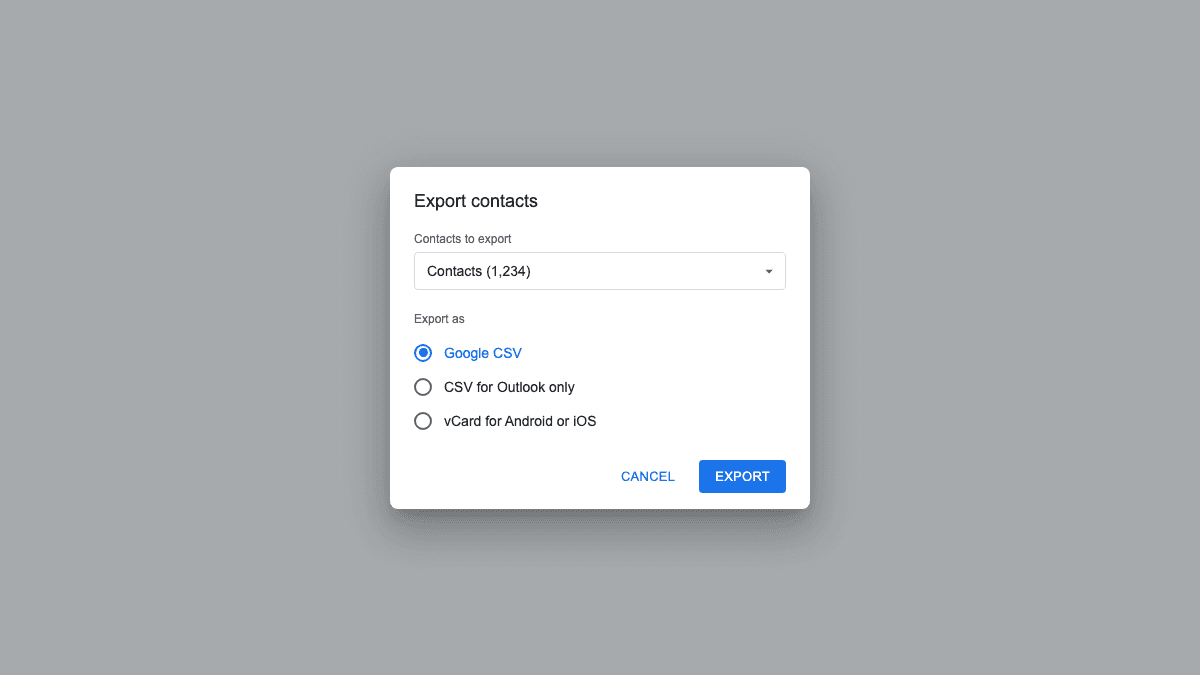
A clean recreation of the dialog, not a real account.
6. Outlook, Apple, and anything else
We read contacts by meaning rather than by exact column name, so an export from Outlook, Apple Contacts, a CRM, or a spreadsheet you keep by hand all work. Outlook writes Job Title where LinkedIn writes Position, Google writes Organization Name where LinkedIn writes Company, and we resolve all of it to the same fields.
If a row has only an email address and no name, we recover the name from the address where we can and tell you how many we recovered. If we cannot, that contact stays in your list without an invented name attached to it.
7. What we do with your file, and what we never do
We read every row, rank the people most likely to say yes to you, and write you a warm invite for each one that you send yourself, from your own inbox.
We never email the people on your list. Not an introduction, not a survey, not once. Your list is yours. We do not sell it, we do not pool it, and we do not use it to enrich anybody else's account. You can delete it from your dashboard at any time and it goes.